Schedule a lesson
One lesson or a whole term of them, in a few taps.
In the iOS app
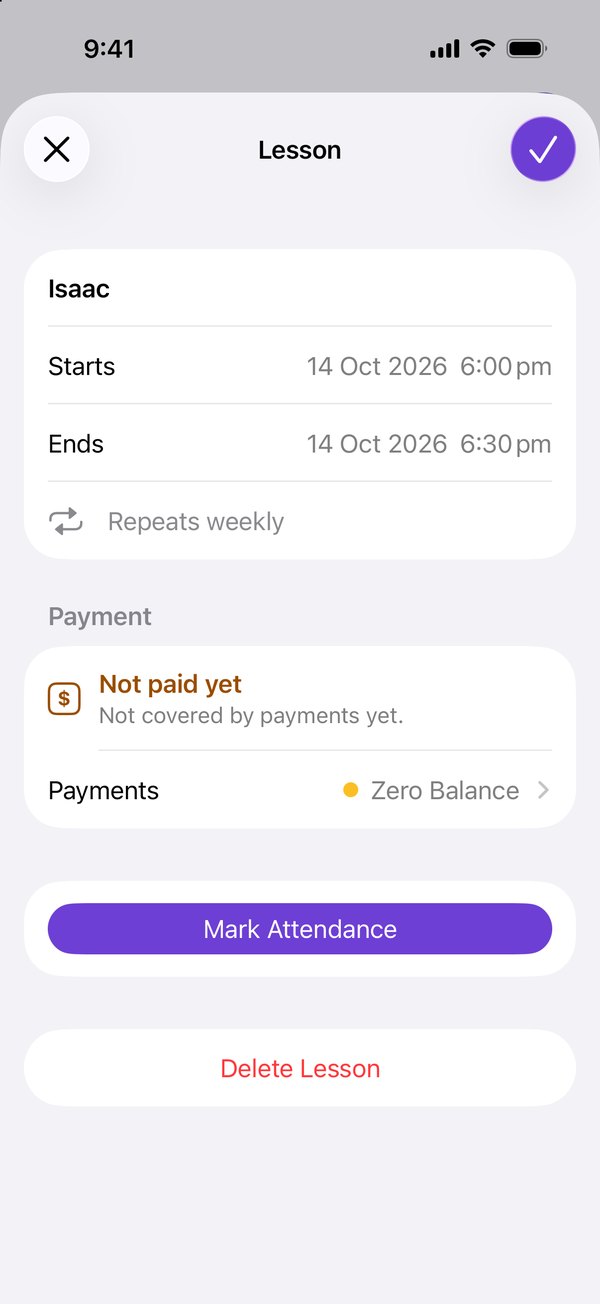
Tap the add button at the top of Lessons (a calendar with a plus), or + on a student’s page.
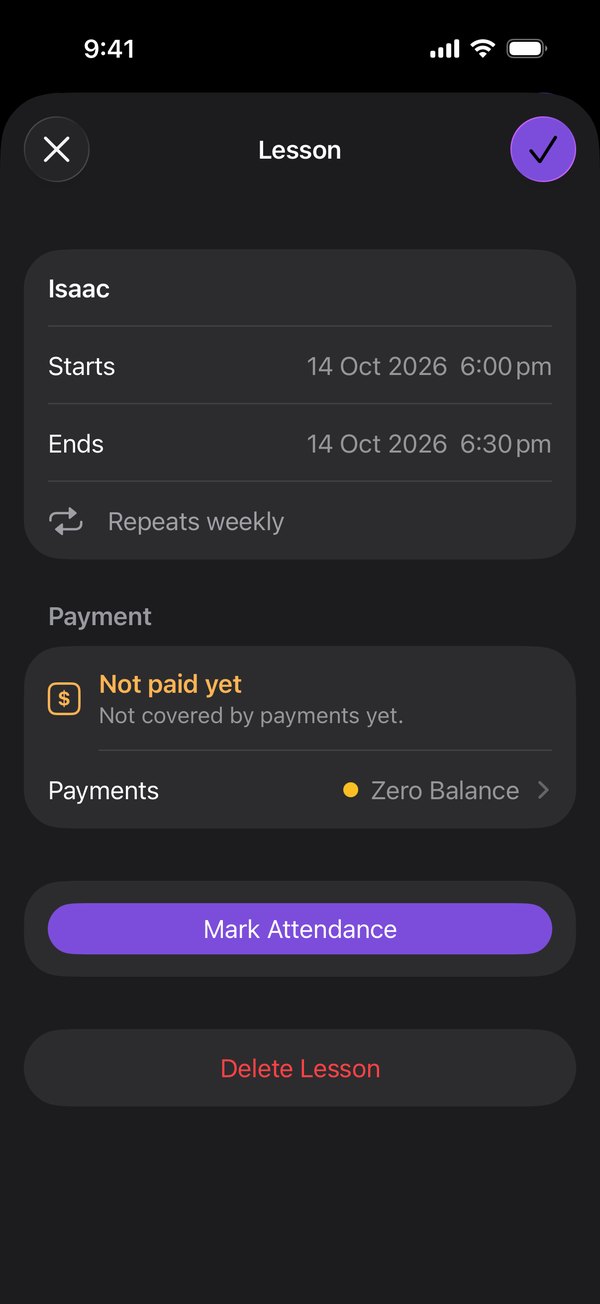
Choose the student, then set when the lesson Starts and Ends.
To make it a series, set Repeat to Weekly or Fortnightly, then choose how many: End after 1 to 52 repeats.
Tap the tick to save.
Good to know
- To move a lesson later, open it, change Starts or Ends, and tap the tick.
- Linked accounts are told about new lessons, and when one moves.
On the web
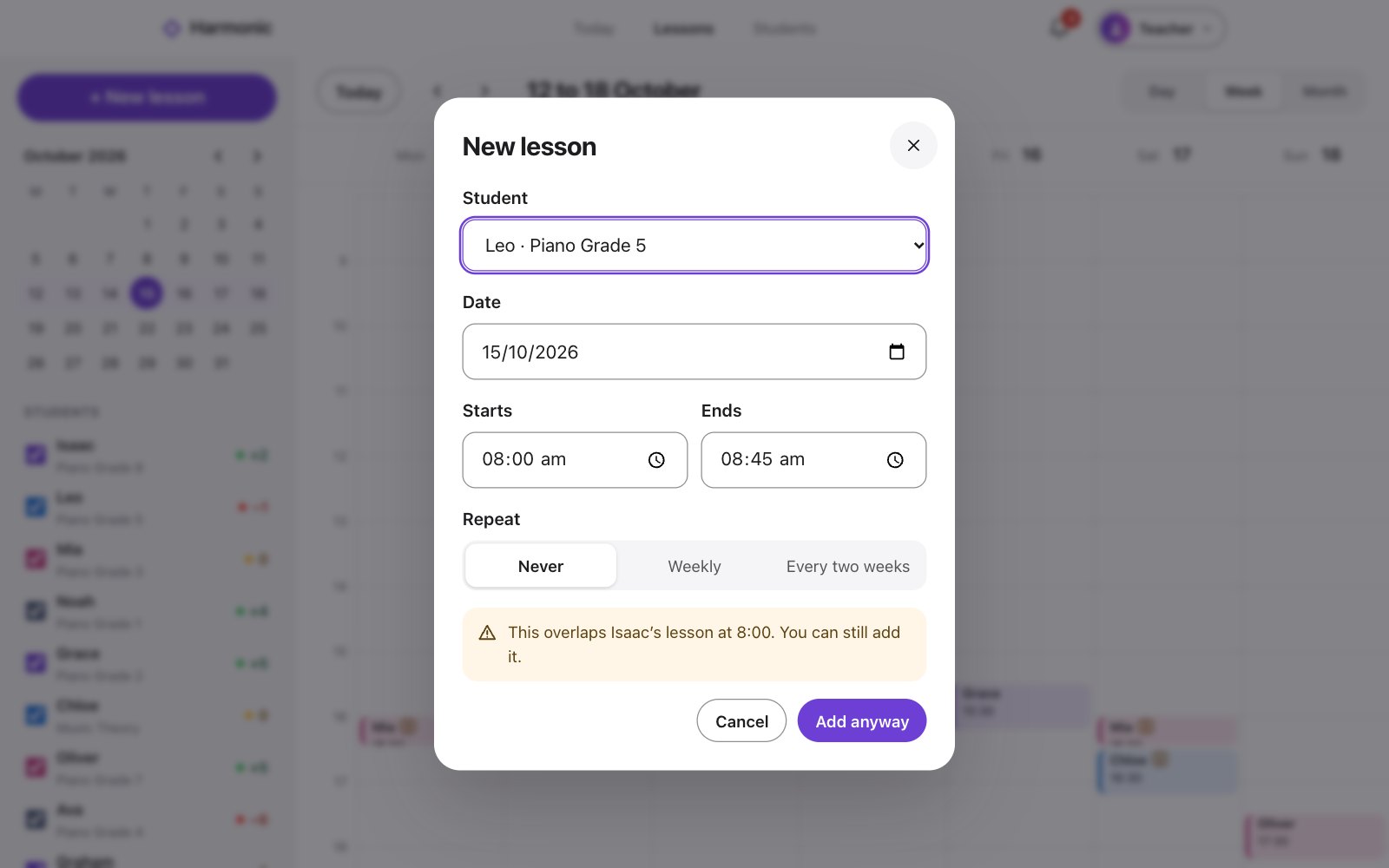
On Lessons, click + New lesson.
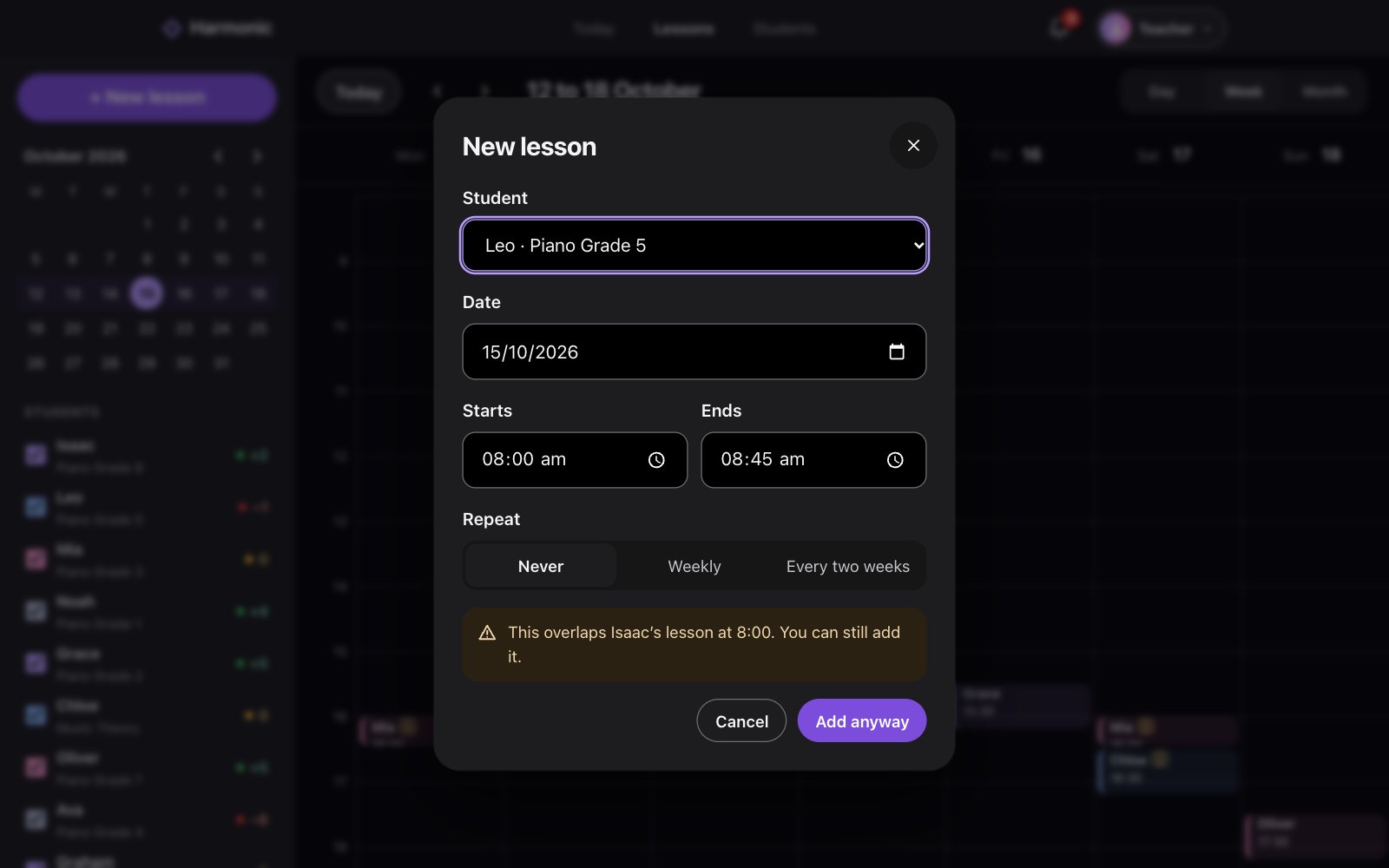
Choose the student, the date, and when it Starts and Ends.
To make it a series, choose Weekly or Every two weeks under Repeat, then how many lessons, up to 52.
Click Add lesson.
Good to know
- To move a lesson later, click it, click the pencil, change the time, and click Save.
- Linked accounts are told about new lessons, and when one moves.