Read the calendar
Lessons shows your calendar: every teaching day, and what needs paying.
In the iOS app
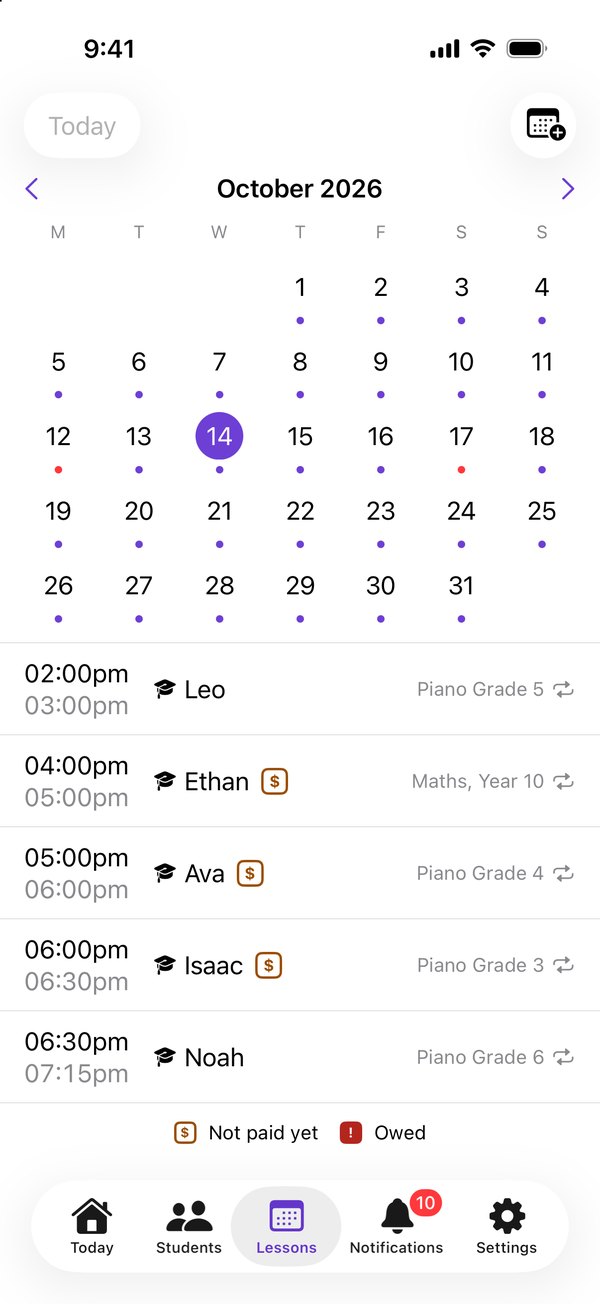
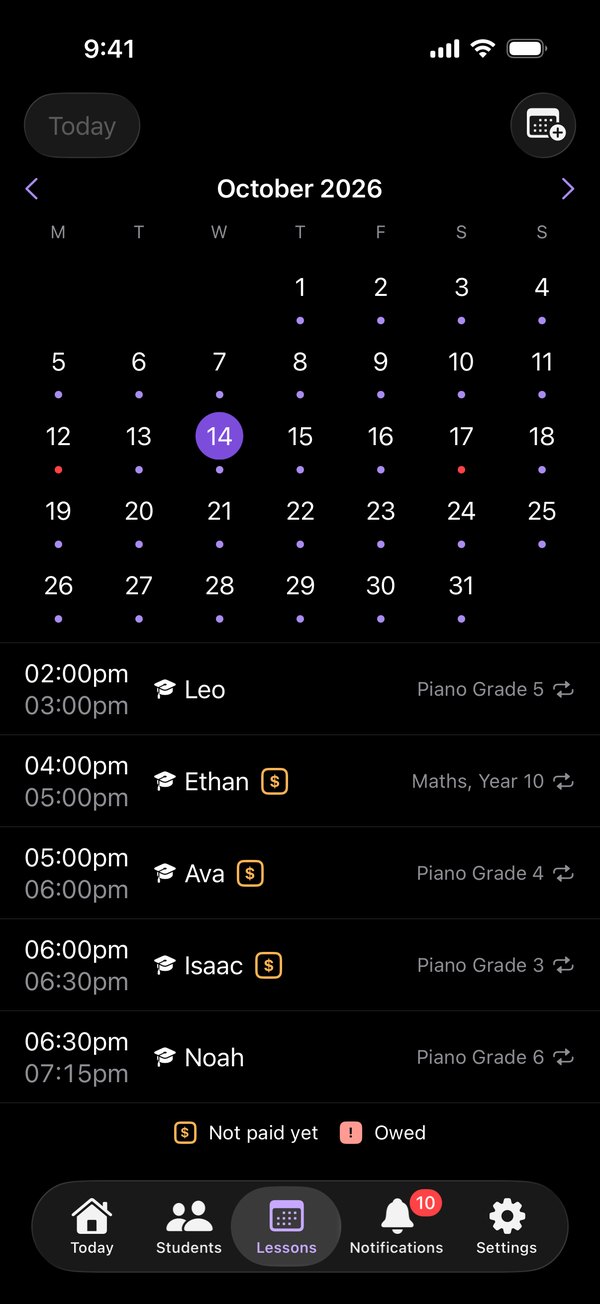
Lessons opens on the month. A purple dot under a day means it has lessons. A red dot means two of them overlap.
Tap a day to list its lessons below the calendar.
Swipe, or use the arrows, to change month. Today brings you back.
Good to know
- A small square on a lesson means it needs paying for: see Read the payment squares.
- Teachers can open a lesson from the calendar. Students see lessons from every linked teacher in one place.
On the web
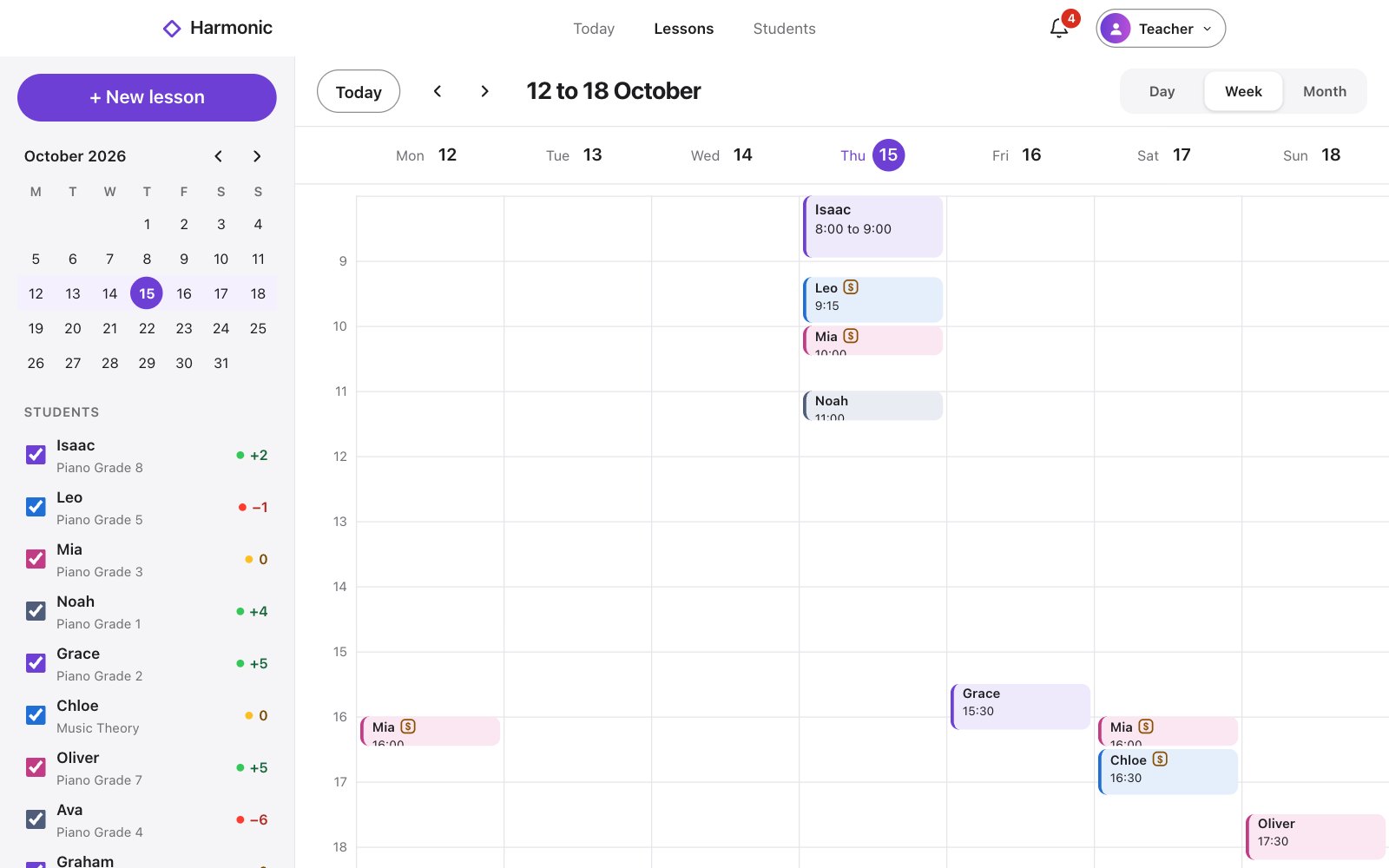
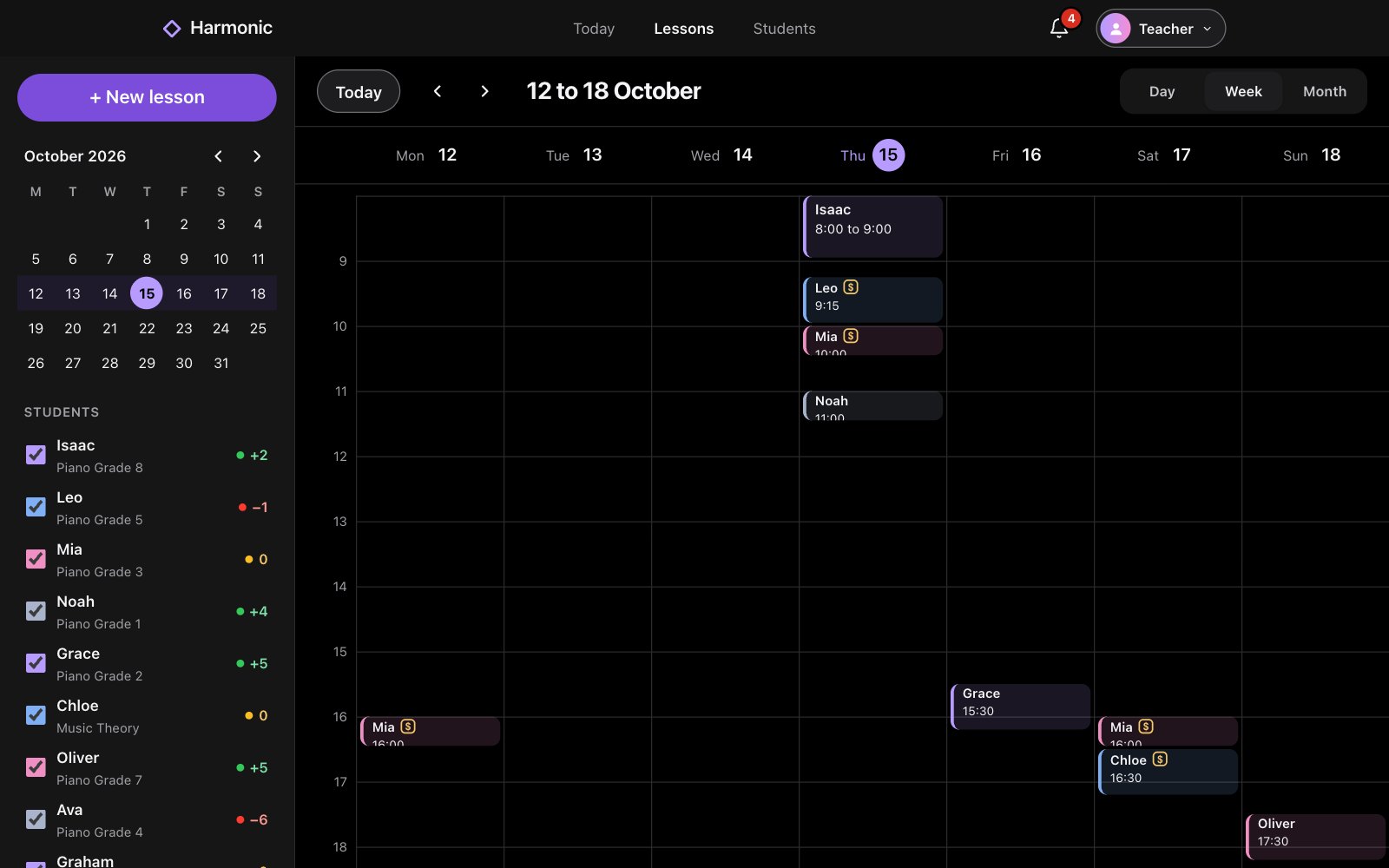
Choose Day, Week or Month at the top of Lessons.
Use the arrows to move, and Today to come back. The small month on the left jumps to any day.
Untick a student on the left to hide their lessons.
Good to know
- A small square on a lesson means it needs paying for: see Read the payment squares.
- Teachers can open a lesson from the calendar. Students see lessons from every linked teacher in one place.