Mark attendance
Attendance is what uses up lesson credits, so mark each lesson once it’s happened.
In the iOS app
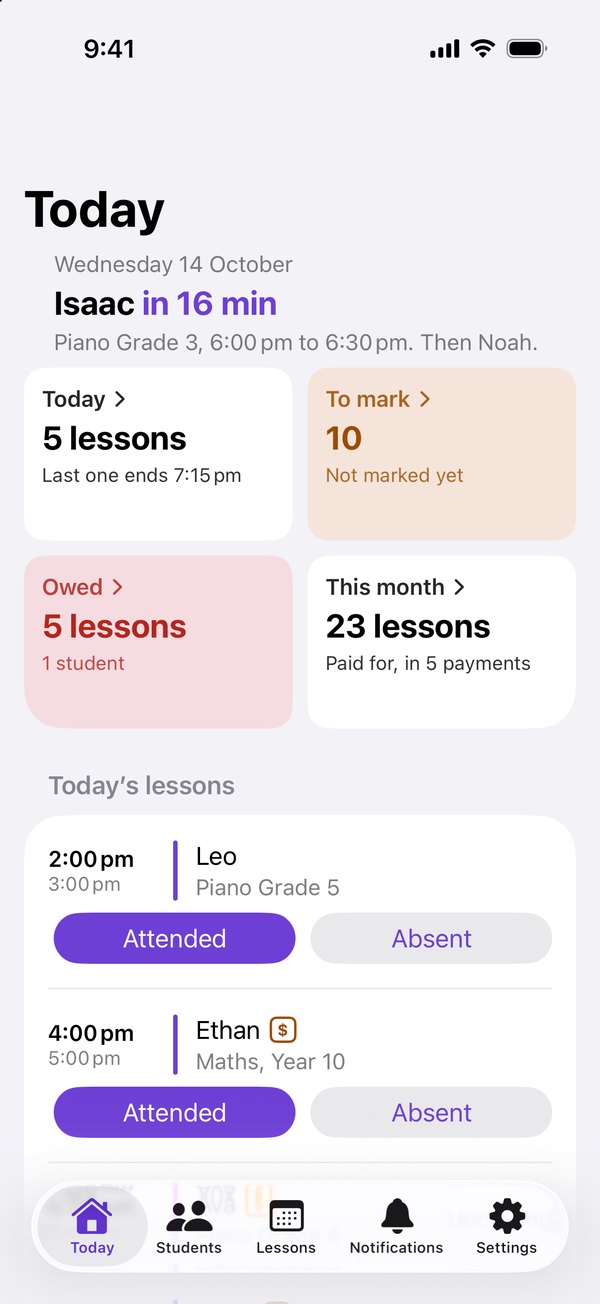
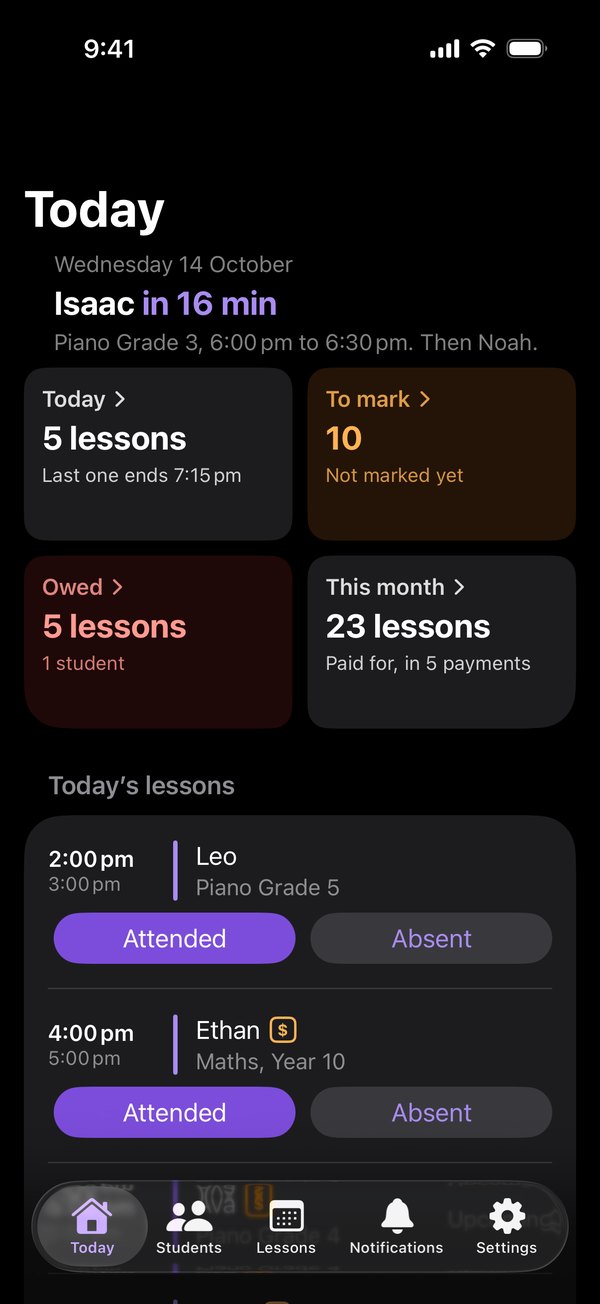
On Today, tap Attended or Absent on the lesson.
Or open the lesson, tap Mark Attendance, then Attended or Absent.
Good to know
- Marked the wrong one? Open the lesson, tap its attendance and choose Clear. It goes back to Scheduled.
- Attended uses one lesson credit. Absent doesn’t, and the ledger says Absent, no charge.
- You can mark a lesson Attended once it has started. Absent can be marked early for a planned absence, and Harmonic asks you to confirm.
- Linked accounts are told when attendance is marked.
On the web
On Today, click Attended or Absent on the lesson.
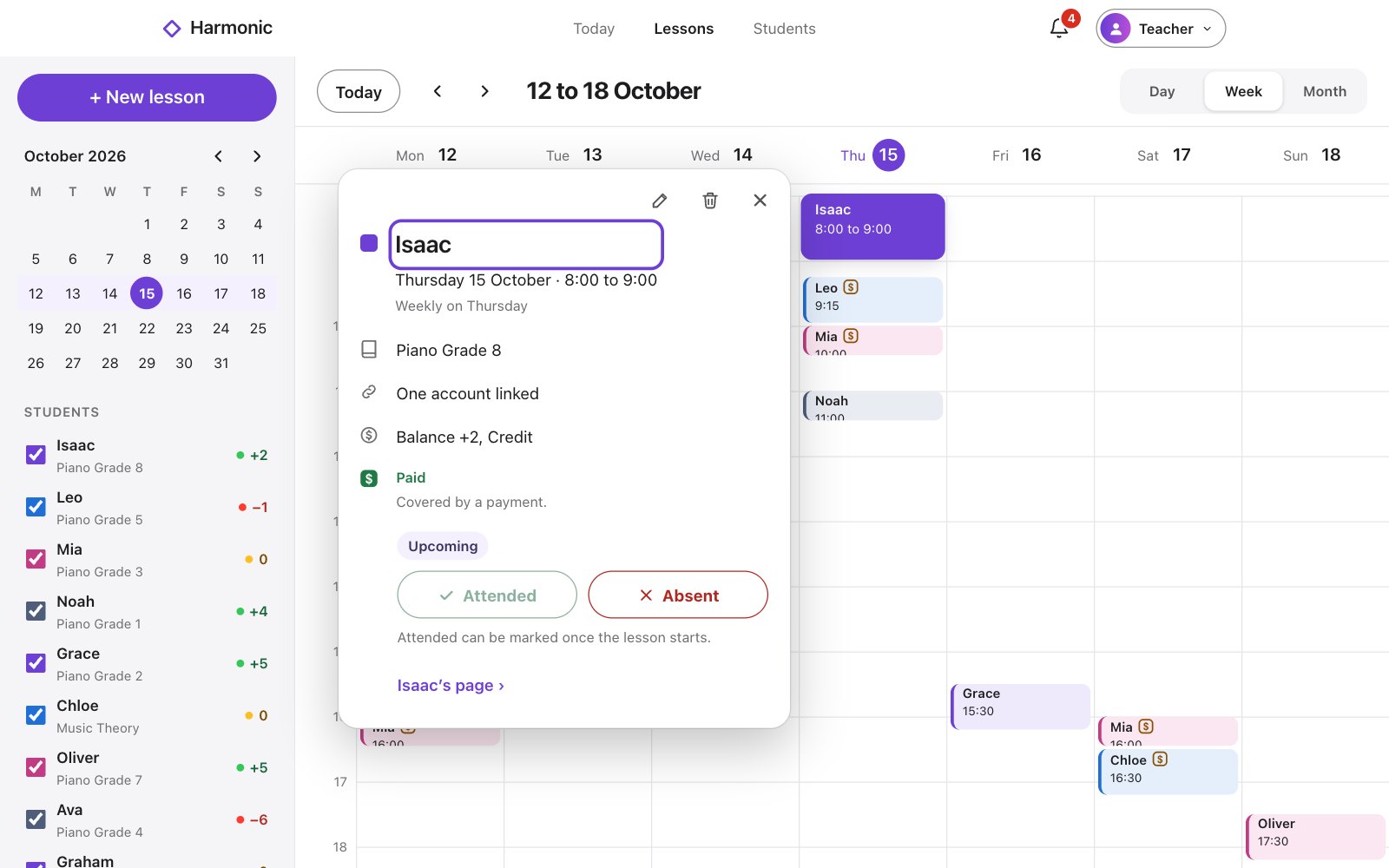
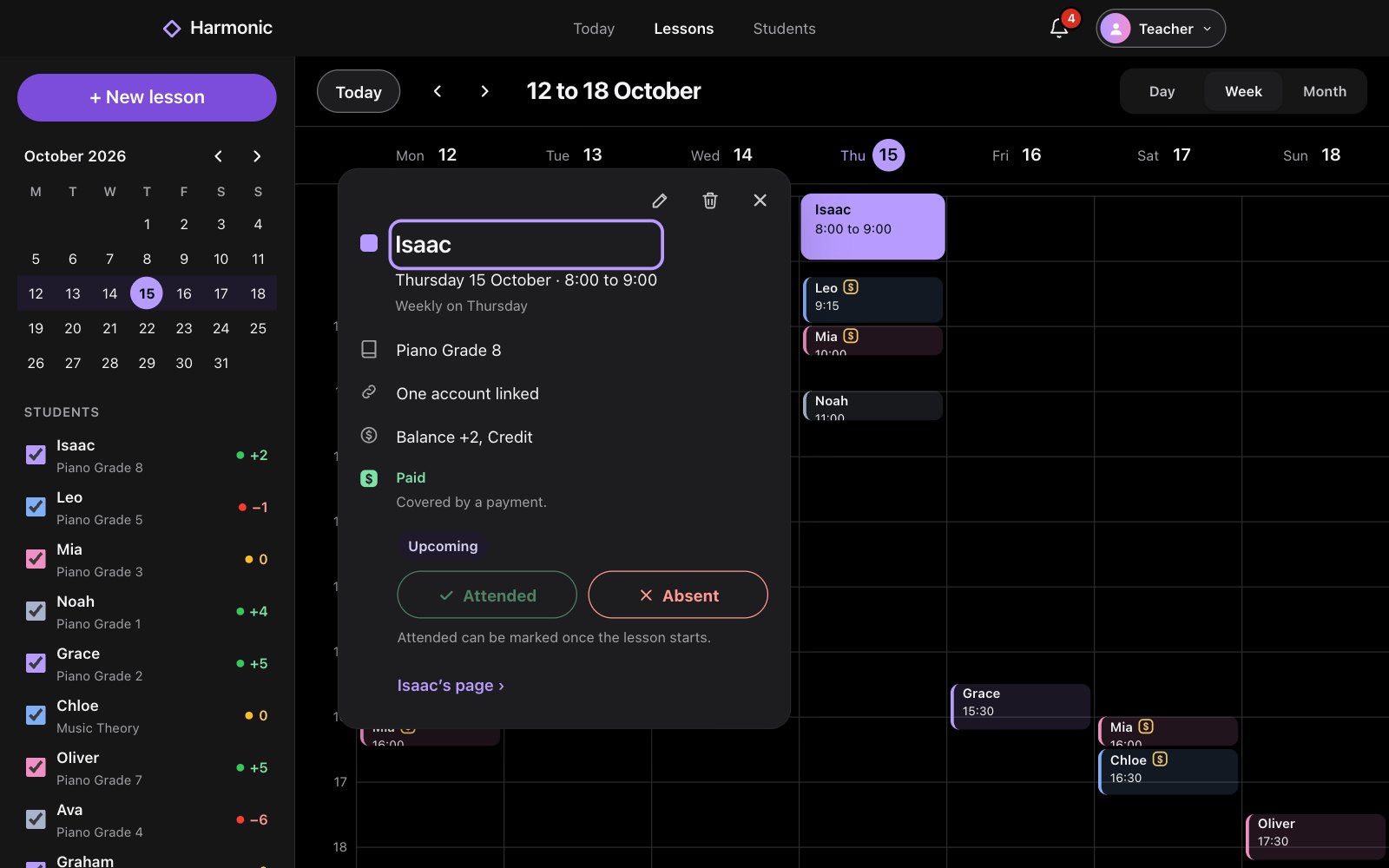
Or click the lesson in Lessons, then Attended or Absent.
Good to know
- Marked the wrong one? Click the lesson, open its menu and choose Clear attendance.
- Attended uses one lesson credit. Absent doesn’t, and the ledger says Absent, no charge.
- You can mark a lesson Attended once it has started. Absent can be marked early for a planned absence, and Harmonic asks you to confirm.
- Linked accounts are told when attendance is marked.