Link a teacher with a student code
Your teacher gives you a student code. Enter it, your teacher approves it, and their lessons appear.
In the iOS app
On Teachers, tap the add button at the top (a person with a plus).
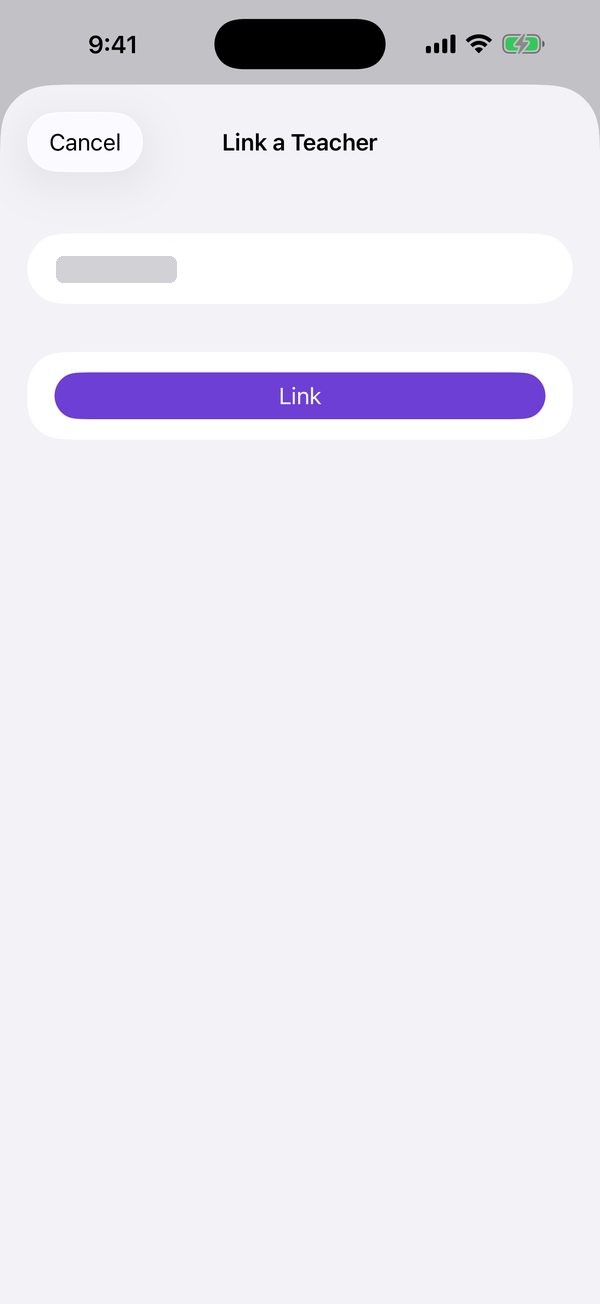
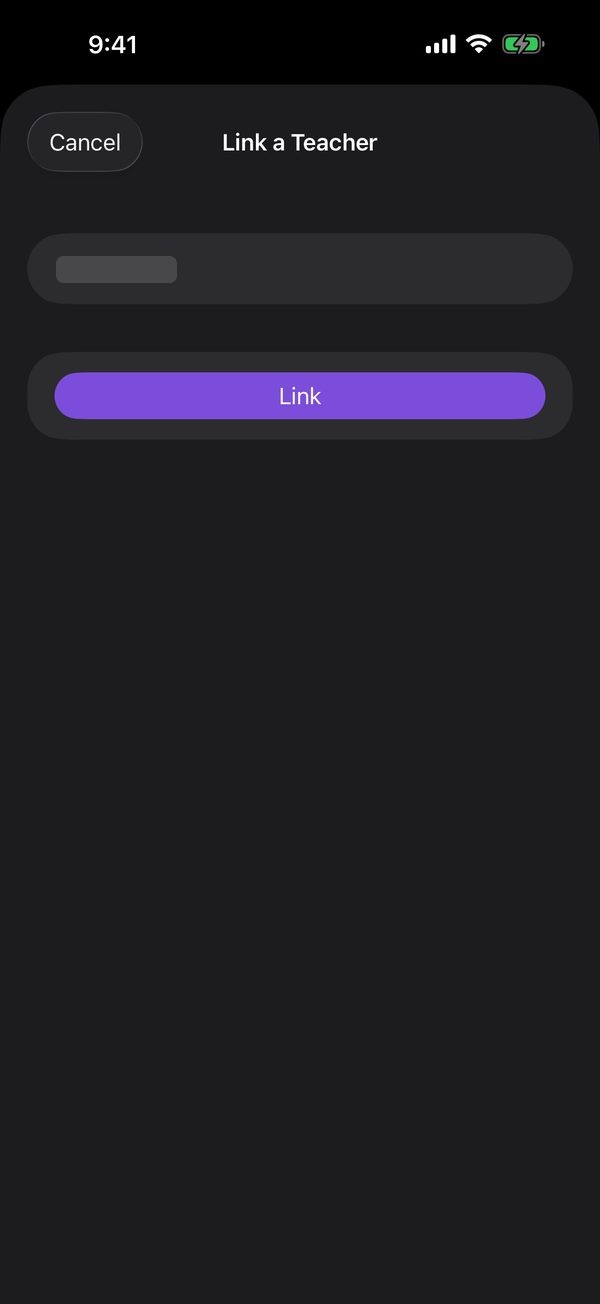
Enter the student code your teacher gave you, and tap Link.
You’ll see Request Sent. It waits under Waiting for Approval until your teacher approves it.
Good to know
- Changed your mind? Tap Cancel Request on the waiting request.
- To unlink, swipe left on the teacher in Teachers and tap Unlink.
- You’re notified when your teacher approves it.
- One account can link to more than one student, for brothers and sisters, and to more than one teacher. Link each code the same way.
- Unlinking only removes it from your own list. Nothing about the lessons or payments is deleted, and you can link again later with the same code.
On the web
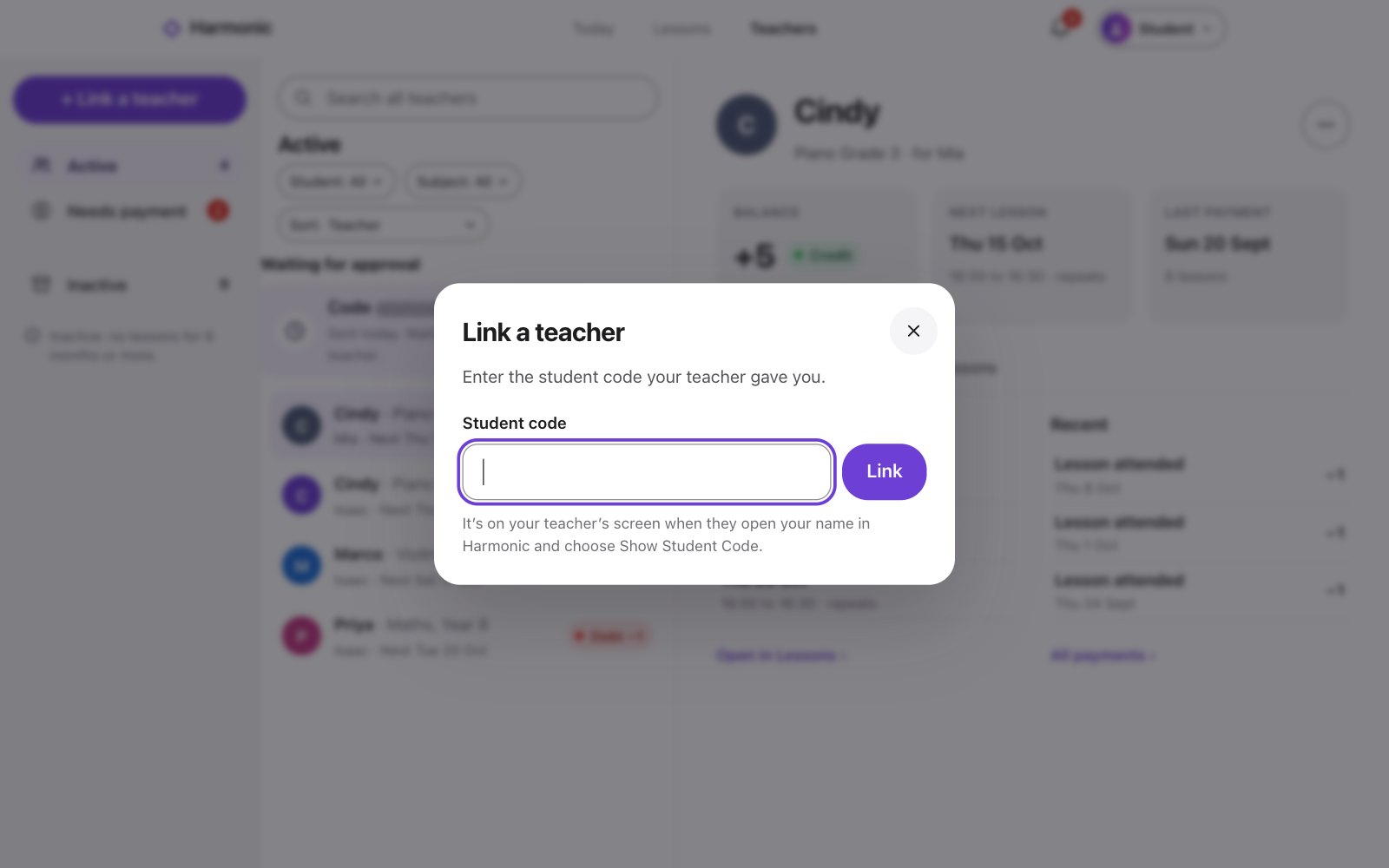
On Teachers, click + Link a teacher.
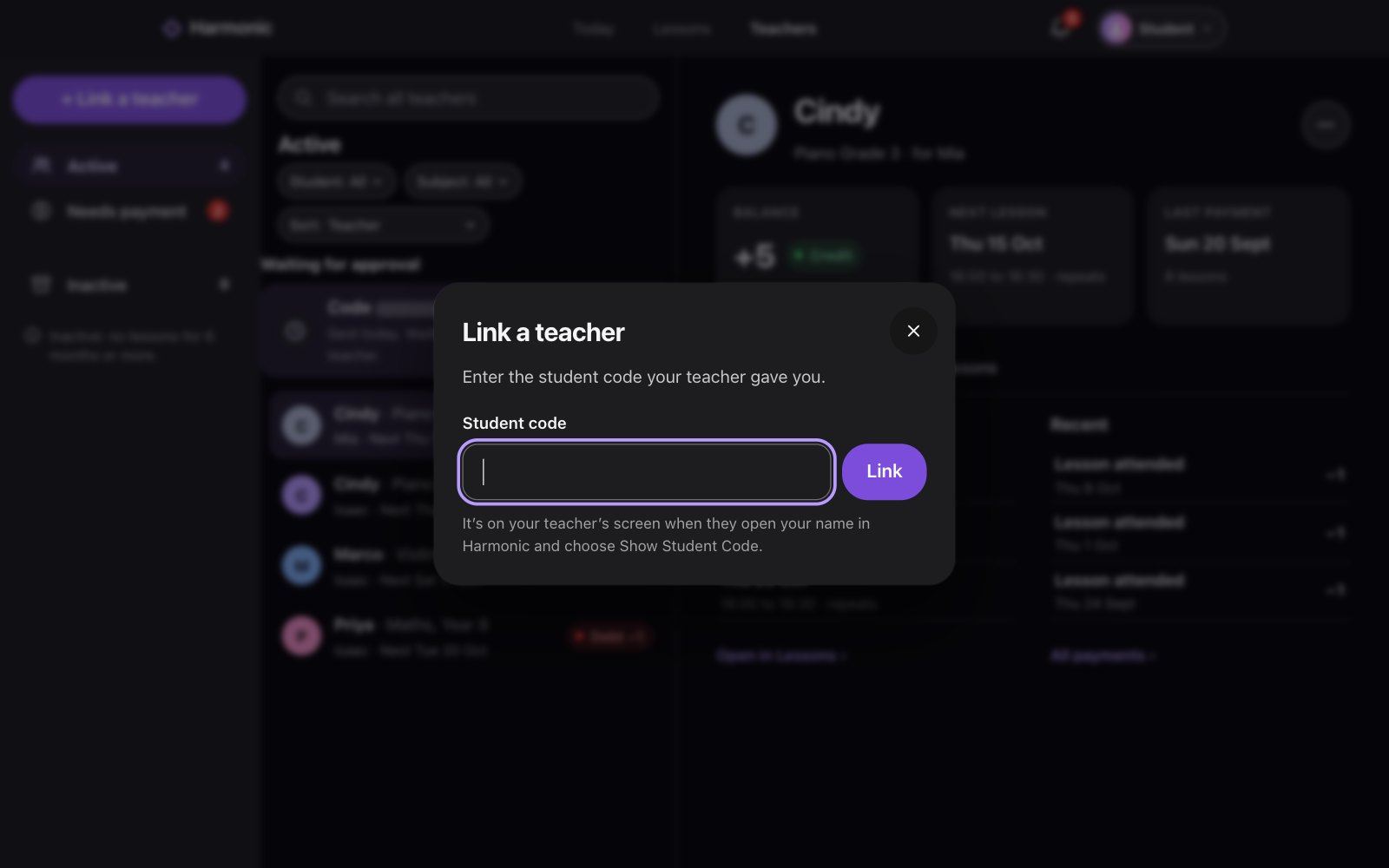
Enter the student code your teacher gave you, and click Link.
It waits under Waiting for approval until your teacher approves it.
Good to know
- Changed your mind? Click Cancel request on the waiting request.
- To unlink, open the teacher, click the … button and choose Unlink teacher….
- You’re notified when your teacher approves it.
- One account can link to more than one student, for brothers and sisters, and to more than one teacher. Link each code the same way.
- Unlinking only removes it from your own list. Nothing about the lessons or payments is deleted, and you can link again later with the same code.