For everyone
Notifications and appearance
What Harmonic tells you about, how to tidy the list, and how to switch to dark mode.
How it works
- Linked accounts hear when a lesson is scheduled, moved or removed, when attendance is marked, and when a payment is recorded, changed or removed.
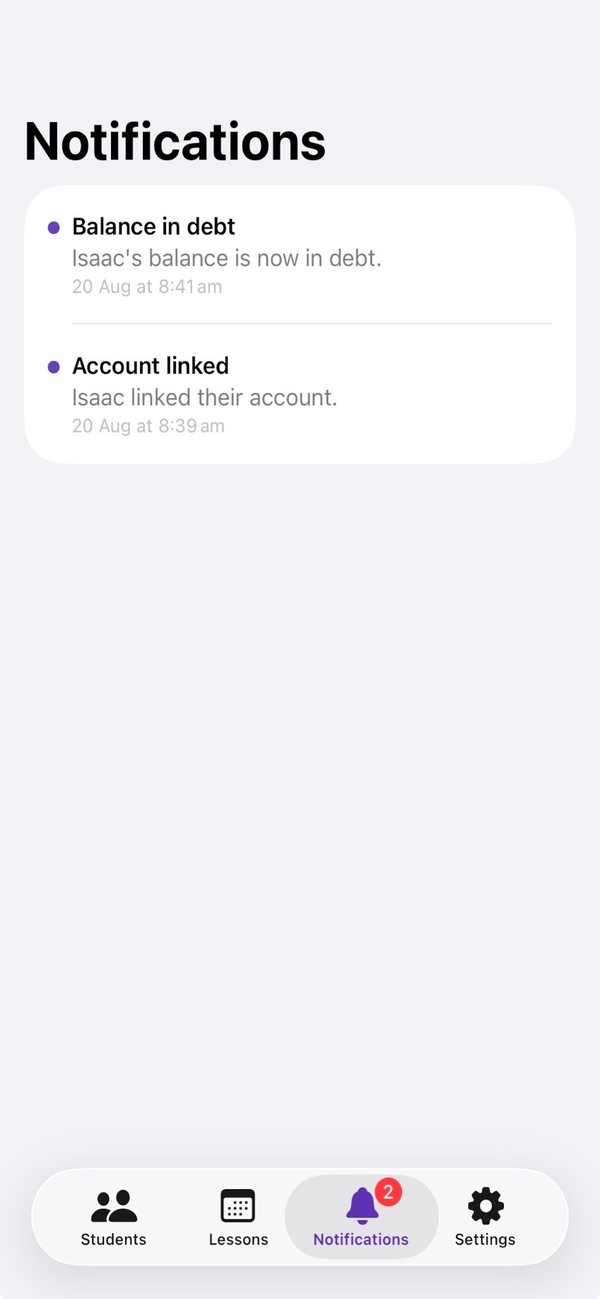
- Teachers hear when someone links to or unlinks from a student. Both sides hear when a balance goes into debt, lands on zero, or comes back from debt.
- In Notifications, swipe right on one to mark it read or unread, or left to delete it. Mark All Read and Delete All are at the top.
- To stop push notifications altogether, turn them off for Harmonic in your iPhone’s Settings.
- For dark mode, open Settings in Harmonic and, under Appearance, choose System, Light or Dark. System follows your iPhone.
Still stuck? In the app, go to Settings and tap Contact Us.