Approve a link request
When someone enters a student’s code, you decide whether they can see that student’s lessons.
In the iOS app
On Today, tap Review beside the request in To do. Or open the student and tap Linked Accounts.
Under Waiting for You, check who’s asking: their name, and whether they signed in with Apple or Google.
Tap Approve, or Decline if you didn’t give them the code.
Good to know
- Only approve someone you gave the student’s code to.
- Once approved, they see the student’s lessons, attendance and payments, and get notifications about them.
- They’re told either way. Someone declined can ask again with the code.
On the web
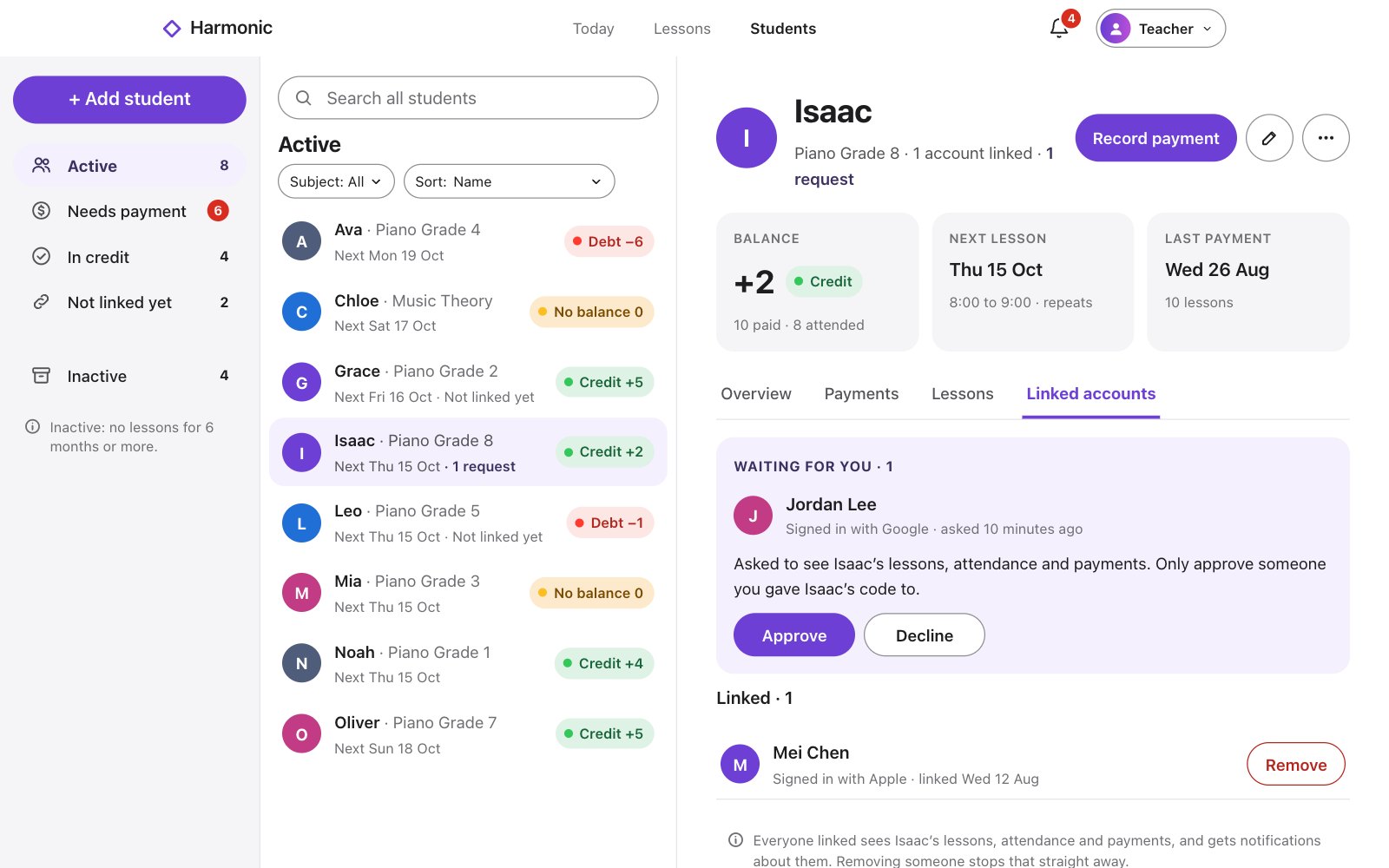
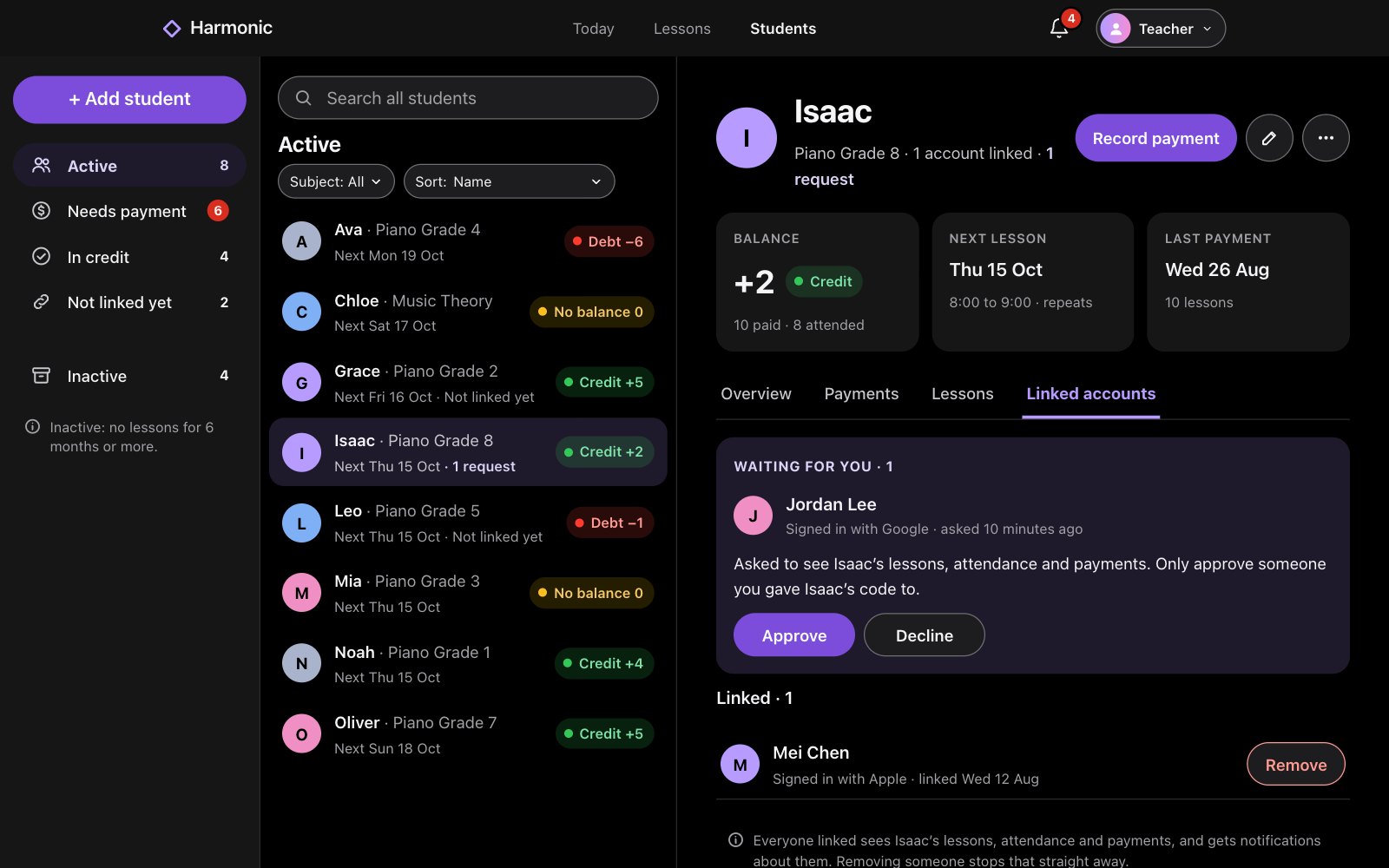
On Today, click Review beside the request in To do. Or open the student and choose Linked accounts.
Under Waiting for you, check who’s asking: their name, and whether they signed in with Apple or Google.
Click Approve, or Decline if you didn’t give them the code.
Good to know
- Only approve someone you gave the student’s code to.
- Once approved, they see the student’s lessons, attendance and payments, and get notifications about them.
- They’re told either way. Someone declined can ask again with the code.