For teachers
Invite a student and share their code
Each student gets a code. Whoever manages their lessons uses it to link their own account.
On Students, tap the invite button at the top (a person with a plus).
Enter the student’s name, and a subject if you like, then tap Generate Invite.
Tap Share Code to send it by message or email, or read it out. It’s eight letters and numbers.
When someone links with the code, a tick appears by the student’s name. A clock means nobody has used it yet.
Good to know
- The code keeps working after it’s used, so a second parent can link to the same student.
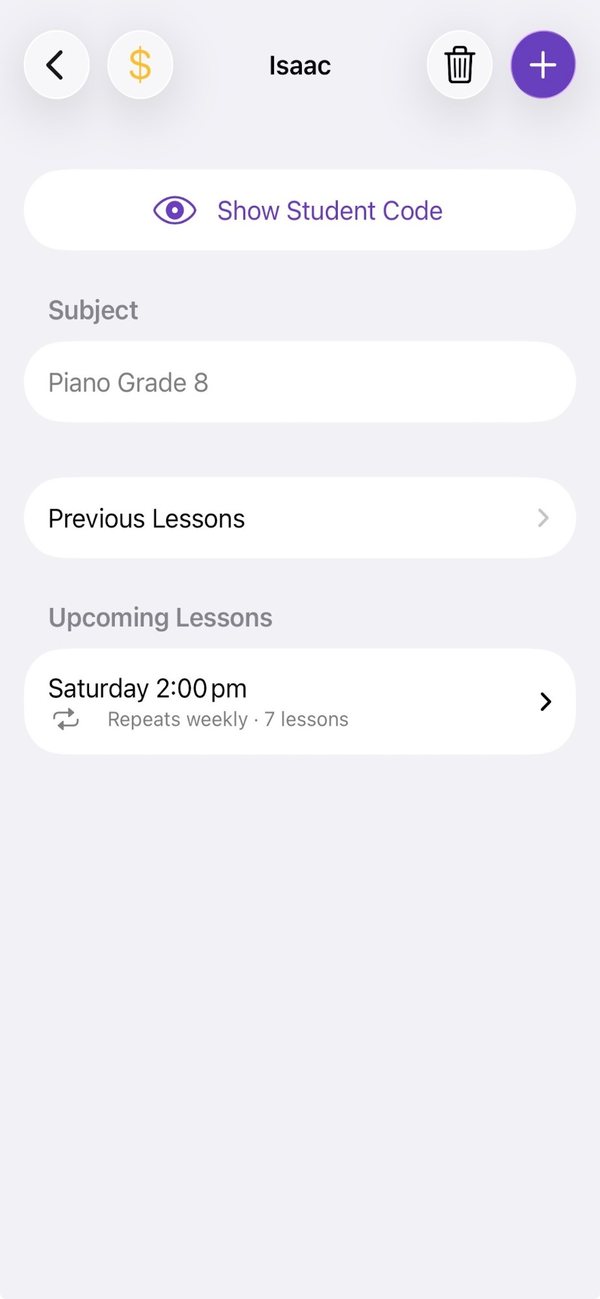
- To see it again, open the student and tap Show Student Code.
Still stuck? In the app, go to Settings and tap Contact Us.