Add a student and share their code
Each student gets a code. Whoever looks after their lessons uses it to ask to link.
In the iOS app
On Students, tap the add button at the top (a person with a plus).
Enter the student’s name, and a subject if you like, then tap Generate Invite.
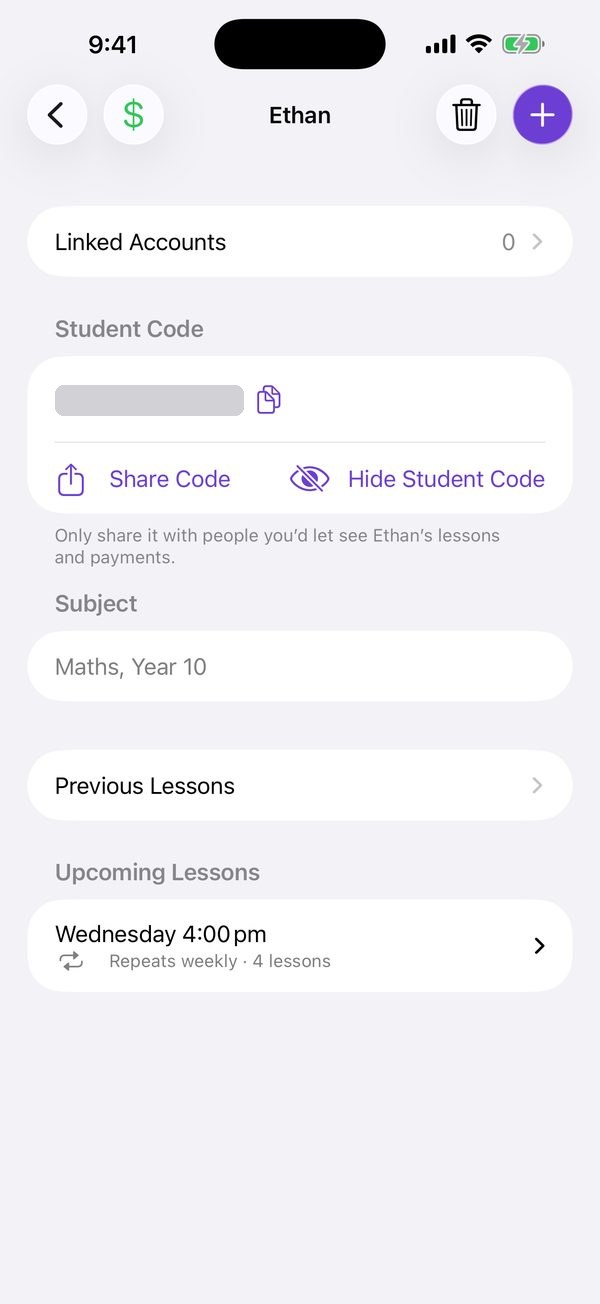
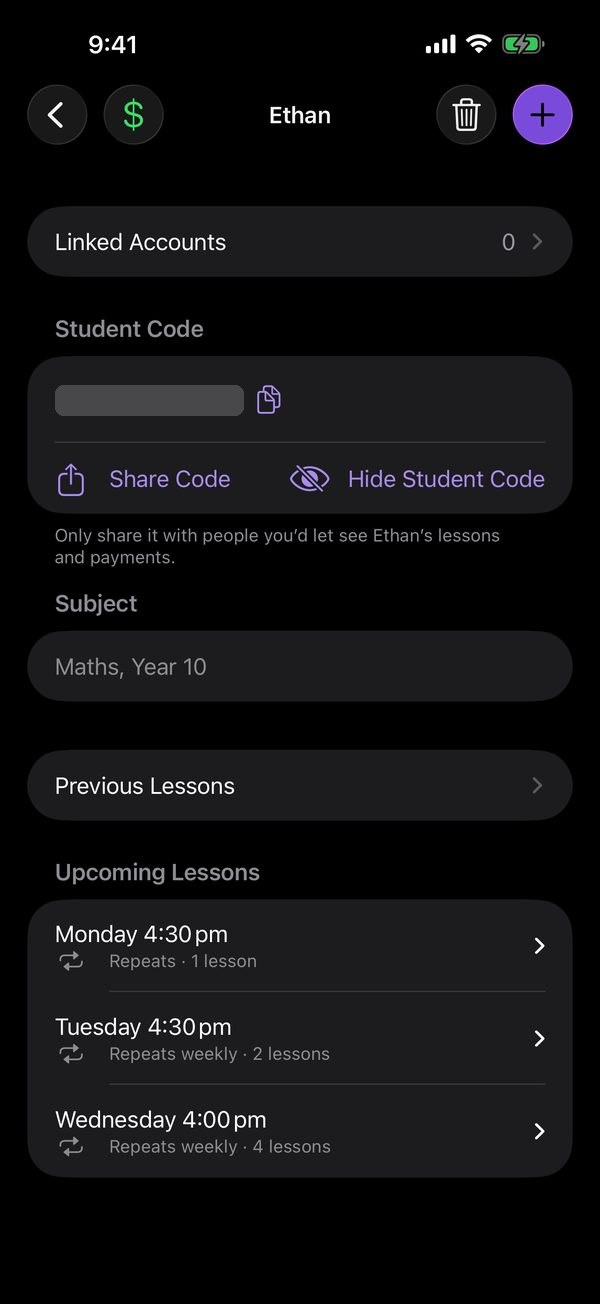
Tap Share Code to send it by message or email, or read it out. It’s eight letters and numbers.
Good to know
- To see the code again, open the student and tap Show Student Code.
- When someone enters the code, you’re asked to approve it before they see anything.
- The code keeps working after it’s used, so a second parent can ask to link to the same student.
- Until anyone links, the student shows under Not linked.
On the web
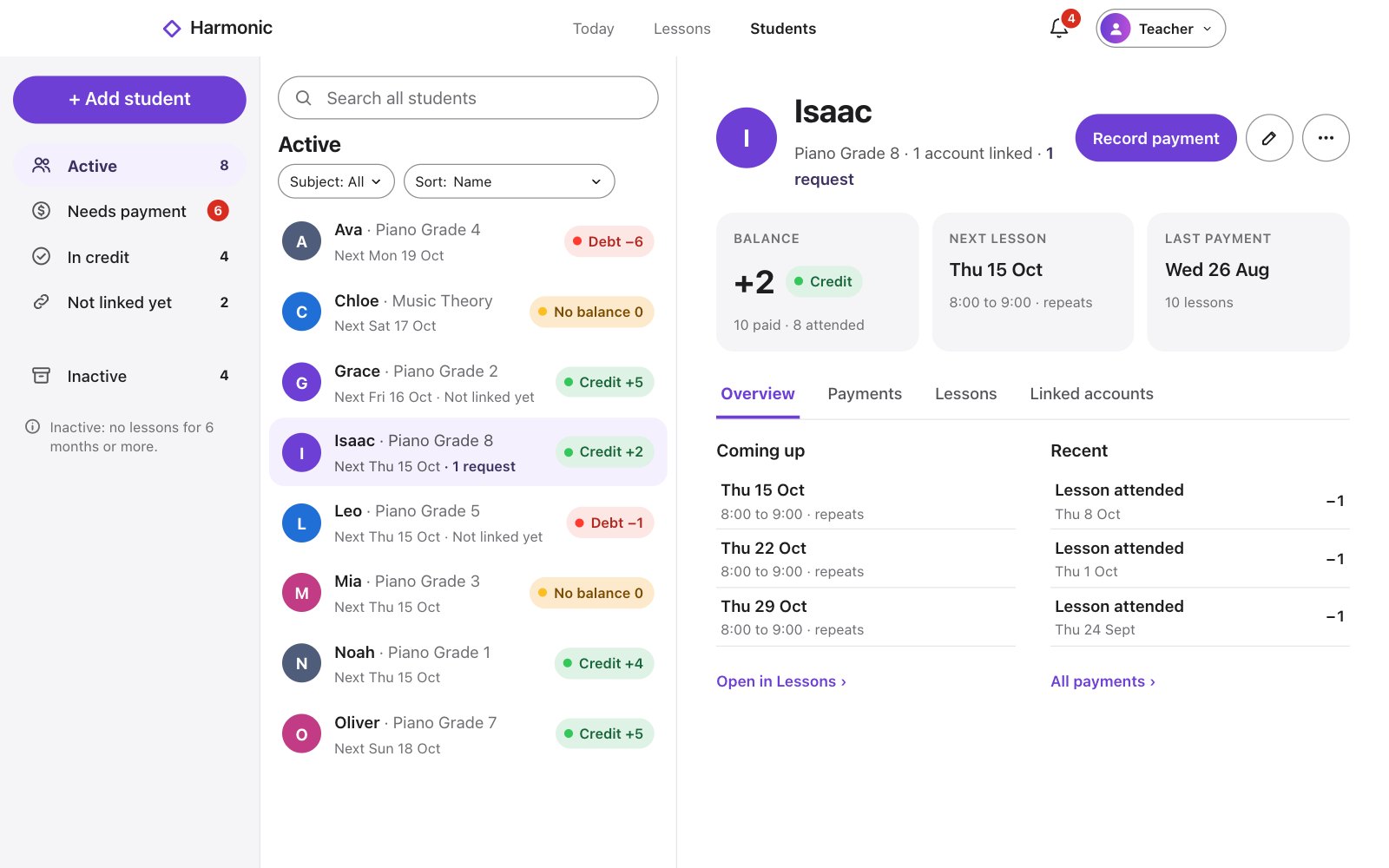
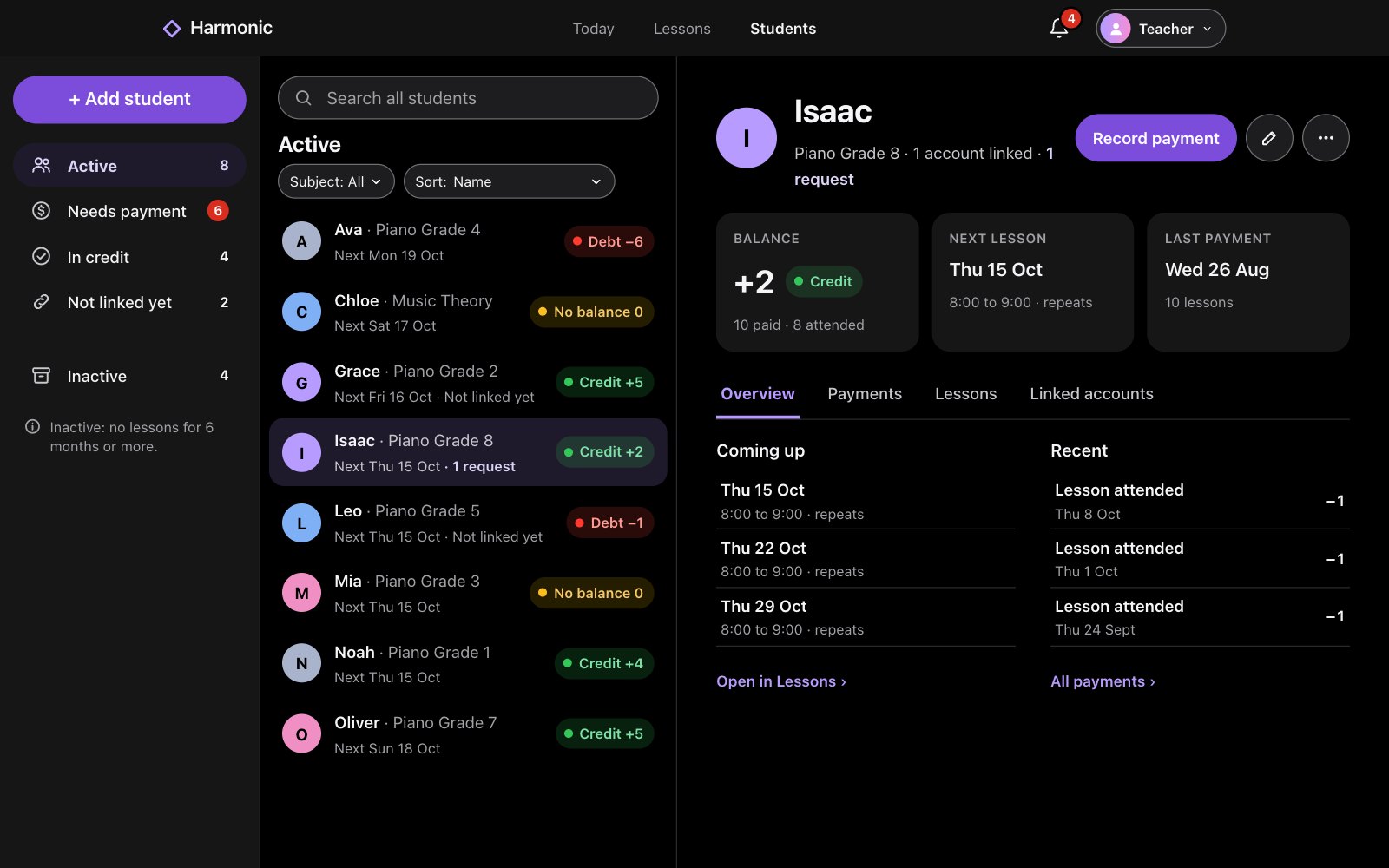
On Students, click + Add student.
Enter the student’s name, and a subject if you like, then click Add student.
Copy the student code and share it by message or in person.
Good to know
- To see the code again, open the student, choose Linked accounts and click Show code.
- When someone enters the code, you’re asked to approve it before they see anything.
- The code keeps working after it’s used, so a second parent can ask to link to the same student.
- Until anyone links, the student shows under Not linked.